

GuideToday and TasksiPhoneMac
Tasks
The whole list, sorted Kept's way or by date, with filters, steps, reminders, comments, and Undo on everything that matters.
Tasks holds everything open. It keeps the order Kept recommends without hiding the rest, and every action on it is reversible.
Read the list
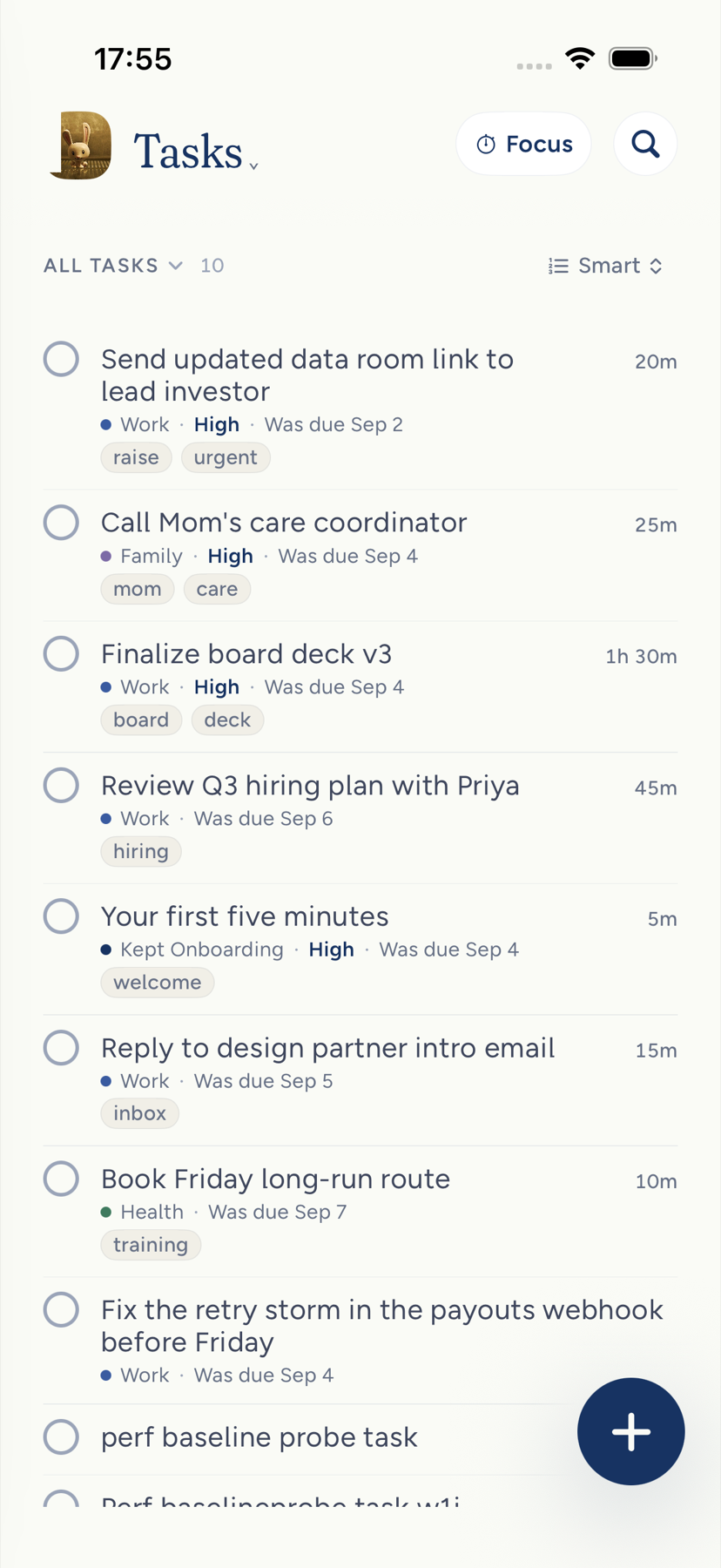
- iPhone. Tap your avatar, then Tasks. The whole list is here; the three that lead the day live on Today. Smart at the top right is a sort menu: Kept's order or by date. The All tasks chip opens the Filters sheet for Area, Due, Urgency, Labels, and Quick wins only; pull it up, or tap More options, and it is also where Row detail lives. A Kept today section folds away what you finished, so a completion is never lost behind a fading receipt.
- Mac. Click Tasks in the sidebar or press ⌘5. Three sections: Top 3, Quick wins, and All tasks, with a Smart or By date switch. A task already shown above is left out of All tasks, so each open task appears once. A Filters panel stands open beside All tasks with the same five questions the iPhone sheet asks: Area, Priority, Due, Labels, and Quick wins only. Narrow the window and it becomes a Filters button in the section header instead.
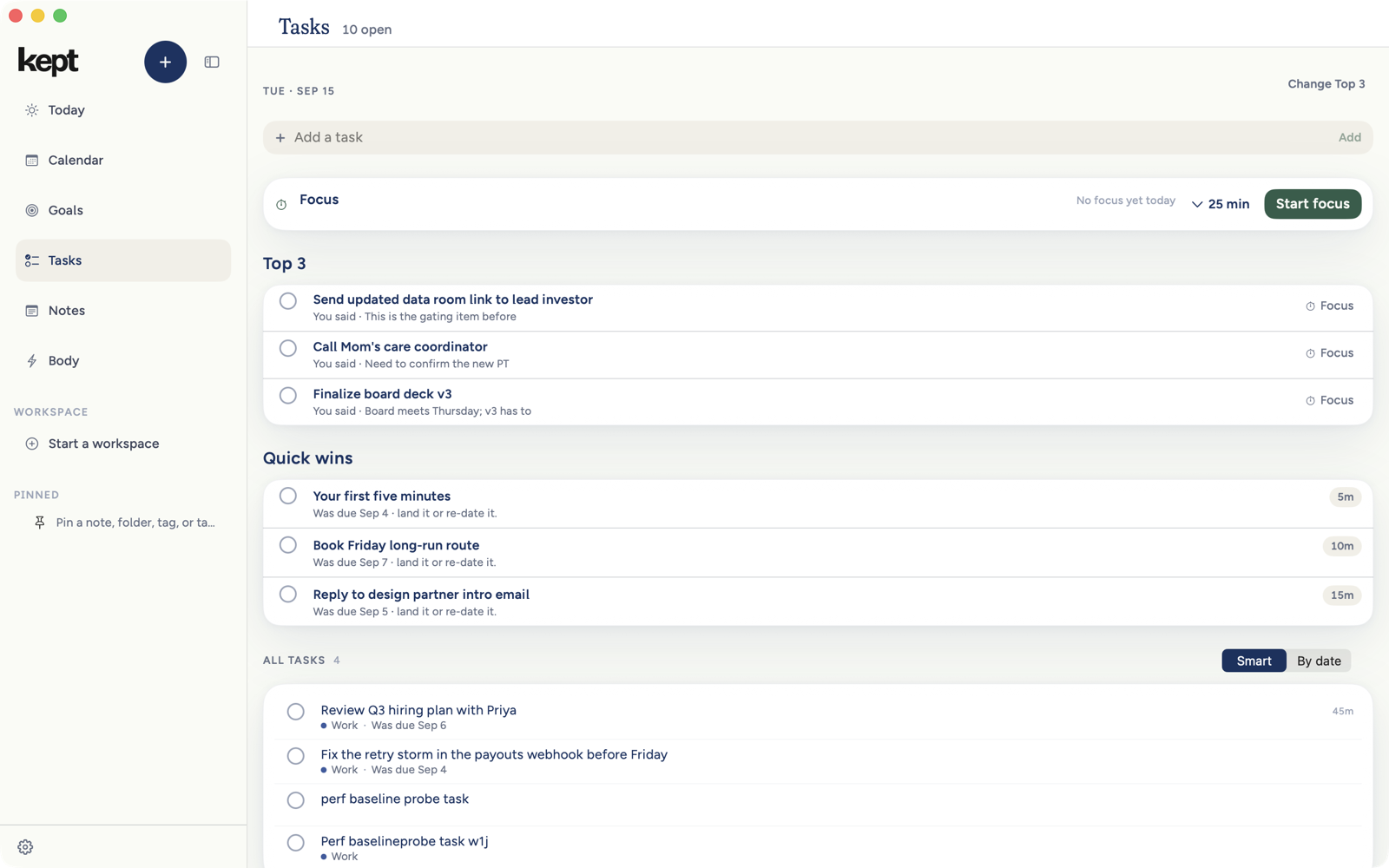
While a filter is on, the Mac header says how much of the list you are looking at, as 5 of 7. With no filter on there is nothing to compare, so the count is left off.
What a row on iPhone showsiPhone
A row says the title, then its area as a colored dot, how many of its steps are done, and its estimate, all lined up at the trailing edge. A second line appears only when the date is worth acting on: Overdue · 25d in clay, Today, or Tomorrow. A date further out is left off the list and lives on the task itself.
Urgency is not printed on a row. It sets the order instead, so in Smart the most important work is simply at the top. The word High appears on a row only at Detailed row detail.
A task with no steps shows no step count, a task with no estimate shows no estimate, and a task with no area shows no dot. Nothing is reported as a zero. When you filter to exactly one area, the dots step aside, since every row is in that area and the filter already says so; VoiceOver still reads each task's area, and the task itself still shows it.
The Filters sheet on iPhoneiPhone
The sheet has two stops.
- Half height, for filtering. It opens here. Each question is one row of choices with no heading, and a row that runs past the edge scrolls sideways. Tap what you want and look at the list above.
- Nearly full height, for setting up. Drag the handle up, or tap More options in the header. Each row gains its heading, its choices wrap so every one is visible at once, the count becomes a sentence such as 12 of 104 tasks · 2 filters on, and Row detail appears underneath. Tap Fewer options, or drag the handle down, to go back.
The headings arrive while you are still dragging, so you can see what the taller stop holds before you let go. You feel a light tap as the sheet starts to grow and a firmer click at each stop. Drag down past the half-height stop, or tap outside the sheet, to close it.
Show all clears every filter at either stop. With VoiceOver, More options and Fewer options move between the stops and say whether the sheet is expanded. With Reduce Motion on, the sheet moves between its stops without the animation, and the headings and Row detail are shown at both.
Row detail
Open the All tasks chip and tap More options (or drag the sheet up) to find Row detail, or set it in Settings → Appearance → Task row detail. It is one choice and it applies to every list.
| Setting | A row shows |
|---|---|
| Minimal | The title and the estimate. |
| Normal (the default) | Adds the area dot, the step count, any reminder, and a date once it is today, tomorrow, or past. |
| Detailed | Adds the area name, the urgency word, labels, and every date it has. |
Minimal and Normal are fixed on purpose, so the row cannot fill back up. Detailed is where the extra fields live.
On iPhone at Detailed, labels sit on one line under the date: up to three, or the first with a count of the rest when they do not all fit. A label too long for the row wraps onto the next line, between words, instead of being cut off.
However much a row shows, VoiceOver reads the whole task: title, urgency, the full due date, any reminder, the steps, the estimate, the area, and the labels.
When nothing is showing
Two different things, said two different ways. Nothing matches these filters means the list is intact and the filters are narrower than it, so it names the true total and offers Clear filters. An empty list says so in its own words and offers Capture a task. While the list is still arriving you see placeholder rows shaped like real ones, never a spinner.
The order holds still
Smart is Kept's order for today, and on the first open of a day it can land a moment after your tasks do. Tasks does not show the list and then rearrange it. On iPhone the header is there straight away, so you can filter or switch to By date, and the rows wait as placeholders in their own places until the order is ready, for a second and a half at most. Past that the list appears in a simpler local order. The first look at a new day works the same way, including when you come back to the app the next morning and it was still open on Tasks.
Once the list is on screen, its rows do not move on their own. A newer order waits until nobody is reading this one: when you leave Tasks or the app and come back, the list opens in it. On iPhone, switching to By date also lets it in, so Smart comes back current. Rows still move when you move them: completing, capturing, filtering, or switching between Smart and By date. On iPhone the menu line Ordered by your plan is shown only while the list is in that plan's order.
On Mac, Tasks appears as soon as your tasks do, in the simpler local order if today's plan is still on its way. Top 3, Quick wins and All tasks each hold still once they show something. A section that has shown nothing yet fills in when the plan is ready, so an empty Top 3 takes its picks while you stay on Tasks, and those tasks leave the sections below it. The rows still shown there keep the order you saw. A newer plan waits until you leave Tasks and come back. A new Top 3 you ask for yourself, with Change Top 3, Try again, or Not today on a pick, shows up as soon as it is ready.
Add a task
Capture is the fast way: one line, and Kept files it. On Mac, Tasks also has an Add a task field at the top that saves a title with no detection step, and ⌘N opens Capture. From Siri, say "Add a task in Kept".
Complete, reopen, undo
Swipe a row right on iPhone, or click its circle on Mac, and the task is kept. The check draws, the row settles, and a receipt offers Undo for a moment. A swipe only ever completes; it never opens the task, even though you let go on top of the row. The write happens even if the row scrolls away mid-animation, and a task already completed on another device does not replay the motion.
Reopen from the receipt, from Kept today, from the task itself, or from the Top 3 card.
Swipe a row left on iPhone for Tomorrow, which moves the due date one day with its own Undo.
Open a task
Tap a row to open it. On iPhone the task rises as a sheet over the screen you were on, which stays visible behind a soft dim. On Mac it opens in an inspector beside the list; Expand gives it the whole workspace and esc closes it.
What the iPhone page showsiPhone
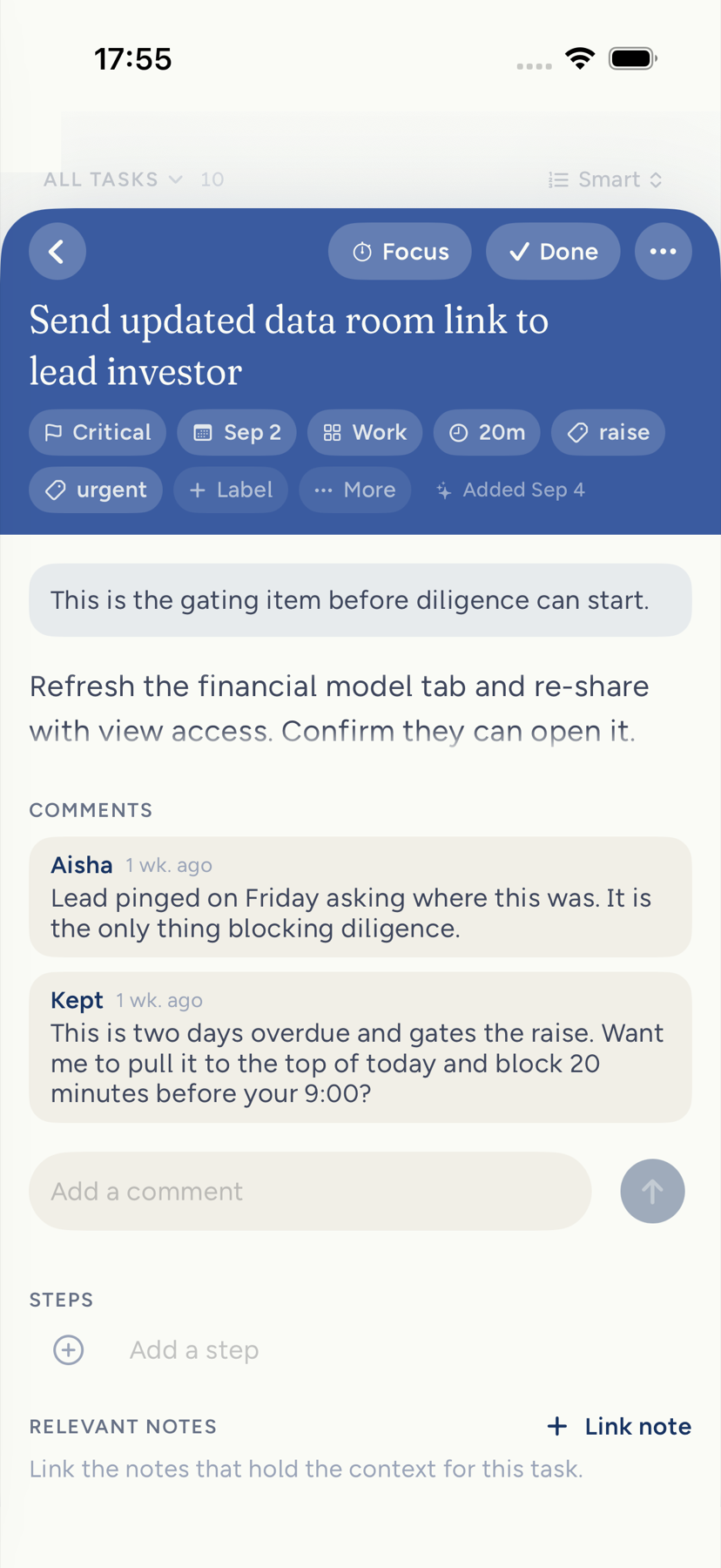
The page has two stops. It opens on the first, about half the screen, with what you need to act on the task. Pull it up to the second, nearly the whole screen, for everything you can change.
The first stop, for acting:
- Title. A thin line in your highlight color runs beside it to show which task is open. A long title shows its first three lines here. Tap the title to edit it.
- What is set. Only the fields that have a value, as filled chips: urgency, estimate, due date, area, goal, reminder, and the day a held task comes back. A past due date marks its calendar in clay. Tap a chip to change it.
- The action bar, at the bottom of the sheet where your thumb already is: Done (or Reopen on a finished task), Focus, and the moon for Not today.
The second stop, for changing the task. Pull the sheet up by its top row, push the page up, or tap More. As the sheet grows, the rest of the page grows in under your finger and the section titles fade in, so you can see what is there before you let go:
- Labels, as outlined chips with a dot. Tap a label to remove it.
- Add details. The fields you have not set wait behind this one chip, drawn as dashed outlines, with + Label beside them. Tap Less to fold them away again.
- Description, then Steps. Once you keep a step, the Steps heading credits it, as 2 kept. Add a step sits under the last one.
- Notes. Link a note sits beside the heading. With nothing linked, the page says so.
- Comments. A task with no comments shows one Comments row. Tap it to write the first one. Once a thread exists, it stays open with the composer under it.
- Added. The date the task was added sits at the bottom, with who added it when Kept knows.
On the second stop the page scrolls as usual. Starting to edit the title, the description, a step, or a comment takes the page to the second stop first, so the keyboard never covers what you are typing.
More and Fewer sit in the top row beside the … menu. They move the sheet between its two stops without a drag, and VoiceOver reads them as More details and Fewer details, collapsed or expanded. With Reduce Motion on, both stops still work, and everything on the page is already there at the first stop; only the growing is left out.
Closing. Pull down with the page at its top to go back to the first stop. Pull down on the first stop to close the task, or tap Close at the top left, or tap the dimmed screen behind it. Pulling down on a task never opens Quick Search. While an edit is unsaved, Close turns into Save, and every way of closing keeps what you typed.
| Field | What it does |
|---|---|
| Title | The words you captured. Edit them any time. |
| Description | Room to write what done looks like. Bold, italic, strike, code, and links; headings, lists, checkboxes, quotes, and tables from /. |
| Priority | None, medium, high, or critical. Critical is one of the signals that can seat a task in Top 3 on its own, along with a due date that has arrived, a linked goal, a why you wrote, or a reminder that fired. |
| Due | A day, with an optional time. Add time turns a due day into an exact deadline shown beside the day in your lists; Remove time keeps the day. A due time is not a reminder and never asks for notification permission. Clearing the day clears both. |
| Area | One of your life areas. |
| Goal | The goal this work serves, if any. Kept fills it in only when you add the task from a goal's page. |
| Estimate | Minutes. The Top 3 chip and Focus use it. |
| Labels | Short tags such as raise or hiring. Add one with Label. |
| Reminder | A local notification at the time you choose, scheduled by each of your devices. |
| Steps | Small ordered pieces. Drag to reorder on Mac. |
| Notes | Link an existing note as reference. |
| Comments | A running thread on the task, including replies from Kept or an agent. |
Reminders
A reminder is a time on the task. Each signed-in device schedules its own alert from it, so a reminder set on Mac fires on iPhone too. Completing or deleting the task cancels the alert immediately, even offline. Reopening restores it. Kept asks for notification permission the first time you set one.
Not today
When a task leads your day and you disagree, swipe left on its Top 3 row and choose Not today, use the moon in the task's action bar on iPhone, or use the row's menu or the inspector's … menu on Mac. It leaves Top 3 and Quick wins until tomorrow. A second Not today within a week holds it for seven days. The task's page shows the return date as a Back chip, and tapping it offers Show in Top 3 to bring it back early.
Delete
Choose Delete task from the task's … menu on iPhone or Delete task… from the inspector's menu on Mac. Kept saves the deletion on the device first, then offers Undo. Comments, steps, and note links stay intact while the offer stands. If the app closes before you decide, the same account gets a fresh Undo offer on return.
Files on MacMac
Open a task and choose Attach file to add documents up to 100 MB each, twenty per task. Files are private to you. Save downloads one with its original name. Removing an attachment removes access and queues the storage for cleanup.
Tasks that came from notes
A checkbox you write in a note, with words after it, is a real task. It appears in Tasks, checking it in either place completes it in both, and a linked to-do in the note wears a faint mint tint. See Writing in the editor.
Next: Focus.