GuideNotesiPhoneMac
Writing in the editor
Type fast, press slash for structure, turn a line into a real task, and trust that every letter lands.
The editor is built so you never wait for it. Type as fast as you like and every letter lands. Structure comes from one key: slash.
Slash for structure
Press / at the start of a line or after a space and a small palette appears. A slash inside a word, as in and/or, is left alone. Keep typing to filter it, then press Return. /text turns any block back into a paragraph, and a one-shot form works too: /task Call the vet makes a to-do that already says Call the vet. The words already on the line stay, the slash query disappears, and the line becomes what you chose.
| Type | What you get |
|---|---|
/h1 /h2 /h3 | A heading at its own size |
/todo or /task | A checkbox that becomes a real task |
/bullet /number | A list |
/quote | A set-off quotation with an accent bar |
/collapsible | A line whose nested writing folds away |
/callout | A highlighted block for something worth noticing |
/table | A table, with menus for rows, columns, and format |
/image | A picture from your library or files |
/code | A monospaced block |
/divider | A rule across the page, with a fresh line under it. Typing --- on an empty line does the same. |
/template | Start from one of Kept's note templates |
The palette reads initials too: h2, td, nl, bl all land where you expect. The names you already know from other apps work as well: ul, ol, hr, bq, sep.
Prefer a menu? On iPhone, the keyboard bar starts with three controls, + for the block palette, the browse button for Insert and format with a search field, and Aa for actions on the current block, including Turn into, followed by bold, italic, strike, highlight, link, and list buttons, with undo, redo, and dismiss pinned at the end. The command group slides sideways only when it is too wide for your screen, and the edge that is hiding something fades so you can see there is more that way. When every command already fits, the bar sits still. On Mac, ⌃⌥I opens the same browser beside the note when there is room, or as a popover when there is not, and hovering a command shows a small preview of what it produces.
Inline formatting
Type the marks and they style when you close them: **bold**, _italic_, ` code , ~~strike~~. Or select words and use the formatting bar. On Mac the bar floats above the selection with Bold, Italic, Highlight, Code, Add link, and Turn into, and the shortcuts print on hover: ⌘ B, ⌘ I, ⇧ ⌘ H, ⇧ ⌘ E`.
One undo removes the phrase you just typed and puts you back where you were. The Mac editor keeps a hundred undoable steps.
Turn a line into a task
A checkbox you write in a note, with words after it, is a real task. Type /todo or /task, write the task, and the line becomes a to-do. The task itself is created when the note next saves, which happens on its own within moments, and it appears in Tasks. On iPhone it does not wait for that: the moment you move off the line, with Return, a tap on another line, or by putting the keyboard away, the note saves and the line becomes a task as you reach the next one. Check it in either place and it completes in both.
On iPhone, while a checkbox with words is waiting to become a task, its words sit inside a faint dashed outline in the shape of the task chip. The outline is not a task yet: there is nothing to open, and tapping the words just puts your caret there. When the line lands, the outline fills in as the chip.
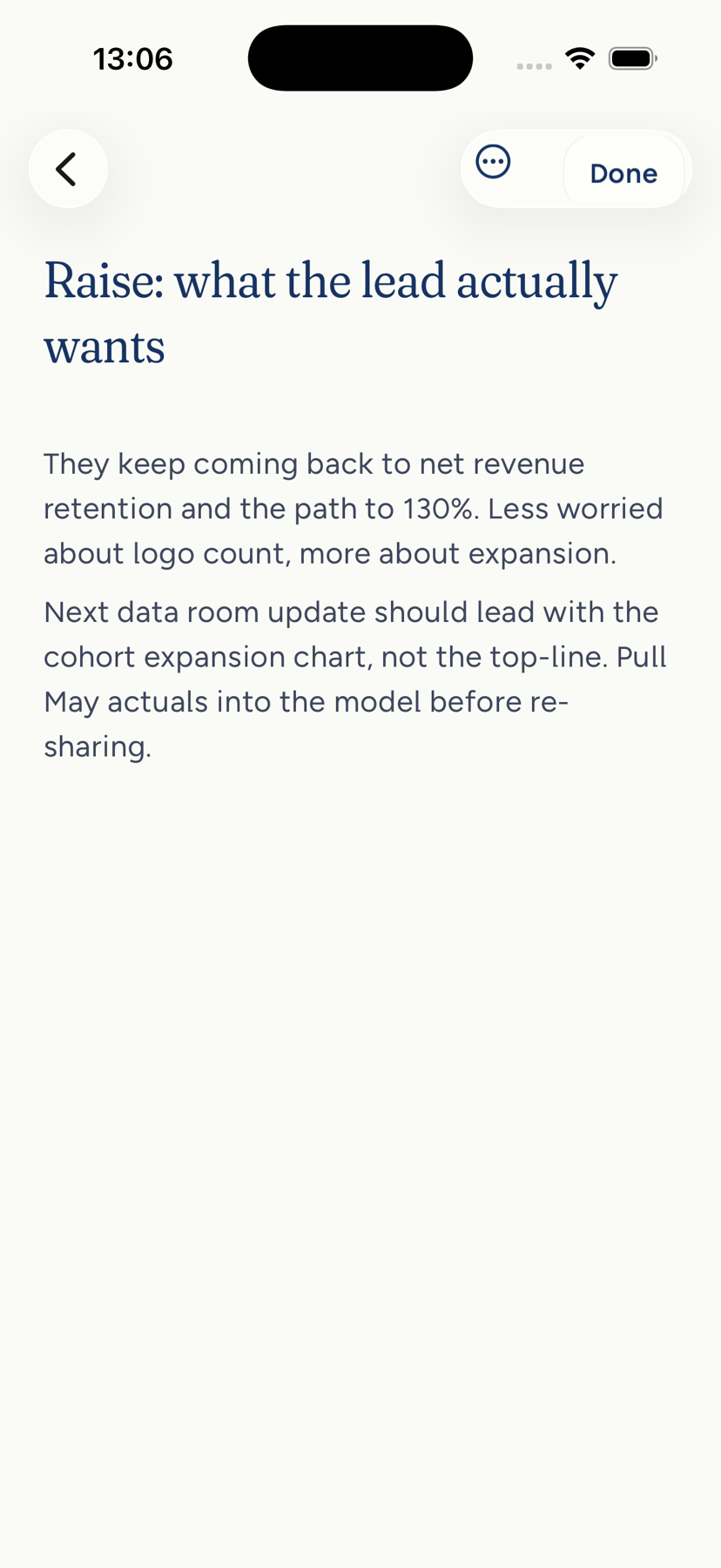
On iPhone, the moment a line becomes a task a quiet line appears under it: Added to Tasks · Open · Undo. It belongs to that line and no other, so two checkboxes kept by the same save each get their own. It never sits on the line you are writing. When you press Return after a to-do, the new line is right under it, so the receipt sits at the end of the to-do's own words instead, if they leave room on that row. If they fill the row, no receipt appears for that line: the chip still shows it is a task, and tapping its words opens it. The same happens if you move your caret into a line a receipt is covering. Taps on Open and Undo always go to the receipt, even where it is drawn over another task's words. Open shows you the task you just made: the keyboard goes away, the task's page opens over your note, and closing it brings you back to the line. Undo takes back that one promotion and leaves the other alone: the words you wrote stay exactly as you wrote them, the line goes back to plain ink, and the next save will not make the task again. The receipt is muted type on the page rather than a banner over it, and it leaves after a few seconds, the same window every Undo in Kept gives you, longer with VoiceOver on. At large text sizes the words, Open, and Undo stack so none of them is squeezed off.
A linked to-do is a task item once it has landed, on iPhone and on Mac: its words sit on a faint rounded mint chip, a shade heavier and darker than the prose around them. That chip, not the receipt, is what says the line is a task from then on. On Mac you hover it for a preview and Open task for the full inspector, or Command-click its words.
On iPhone, tap a task item's words and the task's page opens over your note, with its details, steps, and Done; close it and you are back on the line. Tap the box to complete the task, the same completion you would get in Tasks. The line your caret is in stays ordinary text, so you can keep writing or fixing a to-do without opening it; to change the words of a task item somewhere else in the note, press and hold on them and the caret lands where you pressed, or tap just after the words. Open task is also in the line's block menu, which you reach by pressing and holding the box. On iPhone the box itself is drawn in full ink while the line is open and turns mint once you keep it, so you can see the state of a to-do before you read it.
Older notes with unlinked checkboxes stay as written until you change that note or promote a line. Opening a note, reading it, or moving your caret through it never turns them into tasks. The next save that follows an edit anywhere in the note does make each written checkbox in it a task. To promote one line on its own, use Make a task in the line's block menu on iPhone, or Make task beside the line's text in the note's header menu on Mac.
Delete the task and the checkbox stays in your note, now deliberately unlinked. It will not become a task again on its own, not on the next save and not when you rewrite its words, and that holds even when the note is open on the same iPhone or Mac and you are still writing in it as the deletion goes through, whether the line became a task on its own or through Make a task. Make a task links it again whenever you want it back.
Tables
Insert a table with /table. On Mac, hover it for three compact menus, Insert, Format, and More, which add rows and columns, set a header row or column, align cells, sort by a column, and pin the header while you scroll. Drag a column edge to resize it, drag the last column's edge to resize the whole table, and drag a row's lower edge to give it room. On iPhone, a toolbar above the keyboard adds and removes rows and columns and toggles Header row and Header column, and a long press on a cell offers move, align, column width, and delete. Tab and Shift Tab move between cells; Return stays in the cell, and ⌘↩ adds a row on Mac.
Images
Add an image with /image or from the keyboard bar. It uploads before it is placed, joins the note even if you kept typing meanwhile, and a pending image offers Try again or Cancel if the upload fails. On Mac, choose S, M, or L to fit the image in the column and add alt text to describe it.
Dividers
A divider arrives with a fresh line already under it, ready to type, and one undo takes back the rule and that line together.
Press Return on a divider and a new line opens under it, so a divider at the end of a note is never a dead end. A divider nested inside a collapsible stays inside it.
Toggles
A toggle folds its nested writing away. Tap the triangle on iPhone or click it on Mac. Closed toggles keep their contents in the note; they are just tidier to scan.
Find in note
Search inside a long note, walk the matches, and replace one or all. One undo brings the replacements back.
If a shared edit cannot be applied
Notes autosave, and two devices can write the same note at once. Kept replays your later edit on top of the newer version so both survive. Once in a great while a paragraph you were rewriting was deleted elsewhere while you typed, and there is nowhere for your words to land. Kept keeps a notice on the note and offers Keep a copy: your latest words, including what had not saved yet, become a private note in Notes, and the shared note reloads. Nothing is thrown away.
Next: The daily note.