GuideStartiPhoneMac
Install and sign in
Install Kept on iPhone and Mac, sign in with Apple, Google, or an email code, and finish the five-minute setup.
One account works across iPhone and Mac. Sign in on either device first, and the other one recognizes you when you get to it.
Install Kept
- iPhone. Get Kept from the App Store. If you are testing a pre-release build, it arrives through TestFlight instead; install TestFlight from the App Store, accept the invitation, and take each update TestFlight offers before you investigate a problem.
- Mac. Download Kept from kept.do/mac. It is one universal app for Apple silicon and Intel and needs macOS 26 or later. Open the ZIP, move Kept to your Applications folder, and open it.
Your account is separate from the app on the device, so updating or reinstalling never creates a new account or touches your data. The Apple Account that installed the app does not have to match the email you use inside Kept.
Sign in
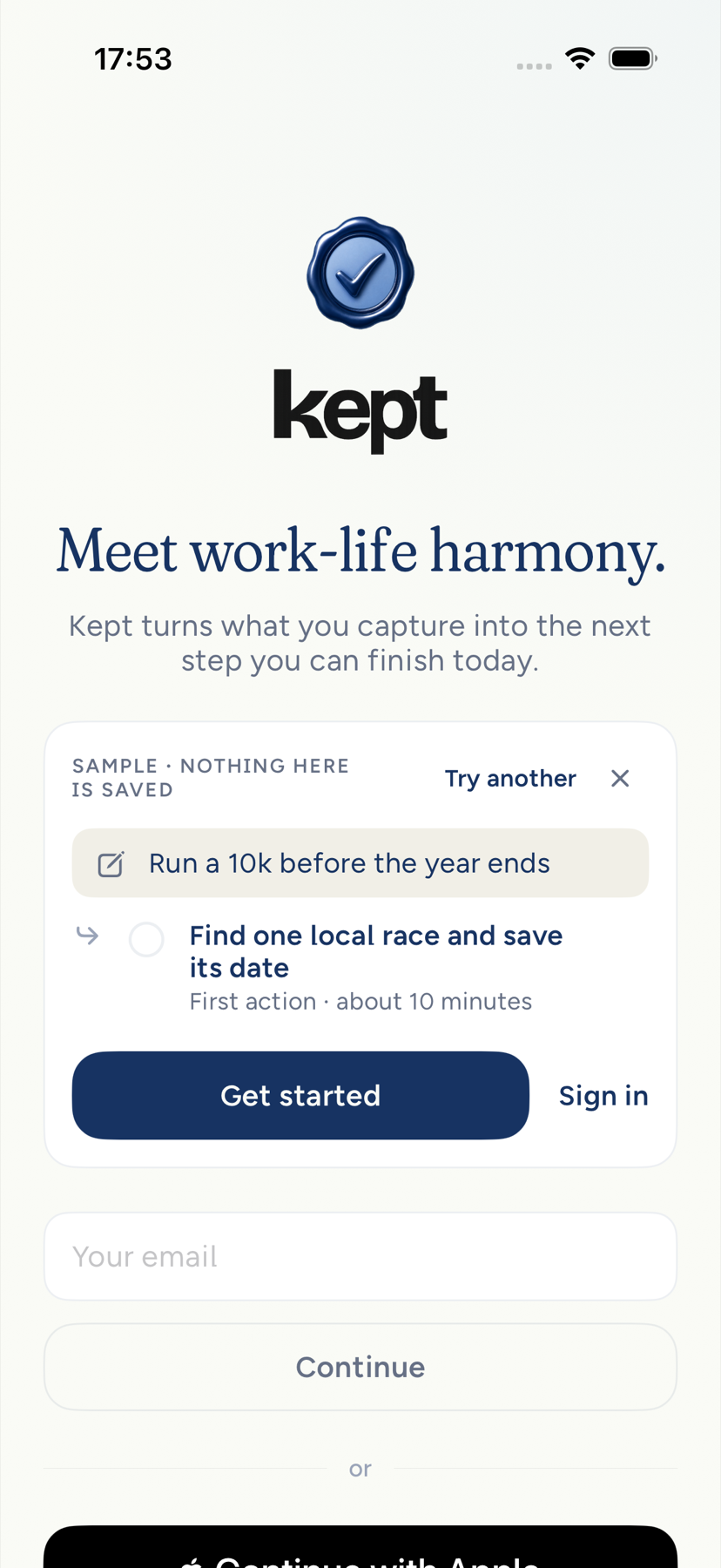
Kept offers three doors, and they all lead to the same account.
- Continue with Apple. The fastest path on iPhone and in the Mac App Store build. Apple may offer to hide your email behind a relay address, and that works fine. The Mac app downloaded from kept.do offers Google and email instead, because Apple's direct-distribution channel does not carry Sign in with Apple.
- Continue with Google. Uses the Google account you choose.
- Email code. Type your email and tap Continue. Kept sends a six-digit code. Paste it and tap Verify code. There is no password to remember.
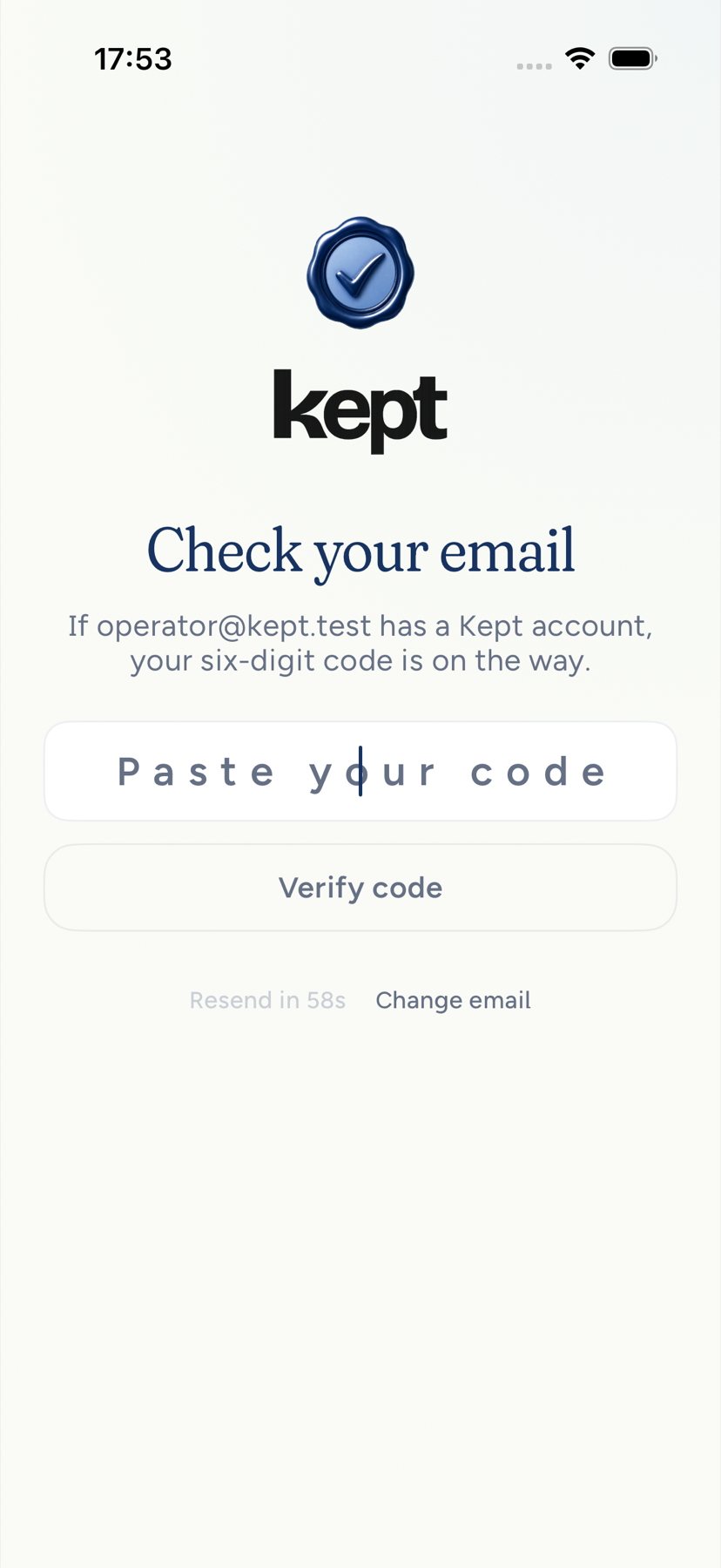
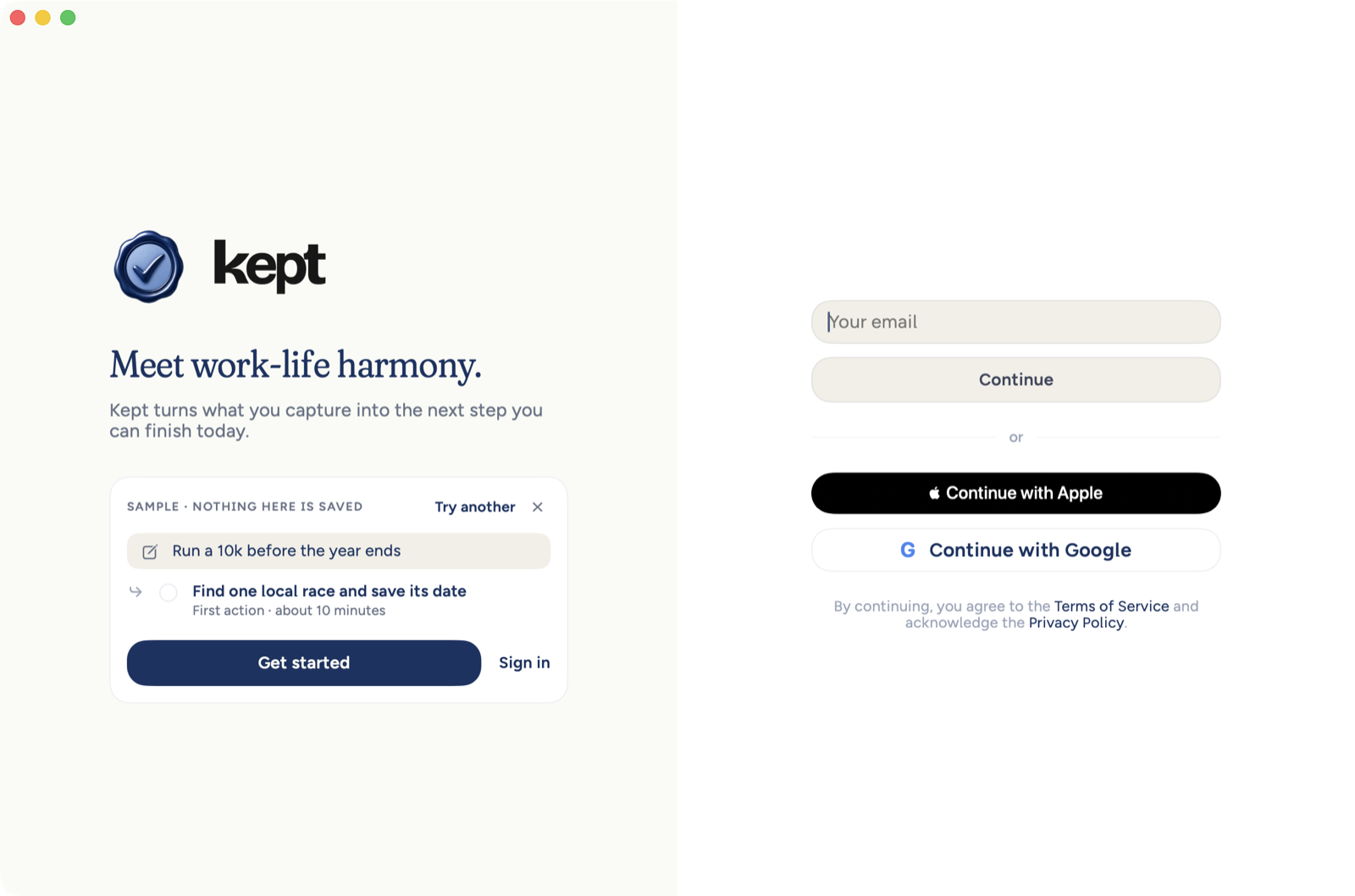
Continue with Apple or Google creates your account the first time you use it. An email code signs you in to an account that already exists, so use the email your invitation named. If Apple shares your name, Kept uses it during setup; change it any time from your Profile on iPhone or the identity card at the top of Settings on Mac.
Finish setup in five minutes
Setup runs once, on the first device you sign in on. It is short on purpose: two questions and a reminders choice, then the app.
- One focus. What's your top priority? Choose one area to focus on: Career & Craft, Body & Health, Relationships, Growth & Mind, Wealth & Money, or School & Study. Continue appears once you have chosen, on iPhone and on Mac. The area becomes your first life area; add more any time in Profile → Life areas. Area names are never cut off: at large text sizes or on a narrow screen a pill moves to the next row or wraps between words.
- One outcome. What's your first goal? Name one outcome in the area you chose. Write it in your own words, or tap a spark such as Run a 10k this year. Kept shows one first action for that goal, something you can finish today in 5 to 15 minutes, before anything is added. When the action is still being written the card reads Writing one for this goal, and Add to Today waits until an action is on screen. Then choose:
- Add to Today keeps the action you see and moves on.
- Suggest another shows a different action for the same goal. It appears only when a model can write one, and a goal gets a few alternatives, not an endless list. While the new one is written, Add to Today waits, so it never adds the action you asked to replace.
- Continue without it saves your goal and moves on exactly as Add to Today does, with nothing added to Today. It never waits.
- Reminders for your plan. Kept says what it would send: task reminders at the time you set, a morning briefing once Cloud AI is on, and a nudge toward your goal now and then, held during quiet hours. Choose Turn on reminders or Not now. Setup continues either way, and Back returns to your goal.
- Ready. One clear place to start. Tap Enter Kept. If you added the action, it is already on Today; if you continued without it, Today is ready for your first capture.
Where the first action comes from: if Cloud AI is already on for your account, Kept's cloud model writes it from your goal words. Otherwise, nothing about your goal is sent anywhere: an iPhone or Mac with Apple Intelligence writes it on the device, and Suggest another asks it for more. When Kept clearly recognizes the kind of goal (losing weight, paying off a card, learning a language, and many more), Kept's own action for it is the first alternative. On a device without Apple Intelligence, Kept's own action shows at once. If writing takes more than about four seconds, Kept's own action appears instead, so setup never waits. Kept's own action is only used for a goal it clearly matches; for any other goal it suggests writing down one small step toward your goal, in your own words, about 5 minutes.
Skip setup is available on the first step if you would rather start empty; Kept then begins with Today and a welcome task.
The reminders step
Every new account sees the reminders step once, on the device where it finishes setup, even when that iPhone or Mac already lets Kept send notifications for another account or an earlier install. Notification permission belongs to the device, but whether Kept notifies you belongs to your account, so Kept asks.
- This device has never been asked. Turn on reminders brings up the system's own permission prompt. Choose Allow or Don't Allow there. After Not now, the system asks the first time you set a reminder on a task.
- This device already allows Kept. The step says so, and says that reminders you set on a task arrive either way: they are local to the device, and the system already allows them. Its list leaves task reminders out for that reason. Turn on reminders turns on the morning briefing and goal nudges for your account right away, with no system prompt. Not now leaves those off for your account.
- Notifications for Kept are off in the system. The step says they are off in the iPhone Settings app (System Settings on Mac) and offers Open Settings (Open System Settings on Mac). If you turn Kept on there and come back, the step offers Turn on reminders for your account. Not now continues without them. Setup does not wait for a trip to Settings.
Whatever you choose, change it later in Kept, under Settings › Notifications. Setup never waits on the answer.
Other permissions come later, in context: Kept asks for calendar access when you connect a calendar and for Apple Health when you tap Connect Apple Health. Each request explains itself and can be skipped. Cloud AI stays off until you turn it on under Settings › Privacy › Cloud AI; nothing is sent to OpenAI or Anthropic before that.
Welcome back on a second device
Sign in on your Mac after setting up on iPhone, or the reverse, and Kept skips setup and opens on Today with your data. Device permissions, such as calendar access on the Mac, are asked for when you first need them. If you started setup on one device and did not finish, the Mac may ask you to finish on your iPhone; that is expected.
The invitation gate
Kept is invite-only during the beta. After your first sign-in, the app checks what your account may do. If it does not yet have access, you will see Kept is invite only. Tap Have an access code?, enter the code from your invitation, and tap Use code. Without a code, Claim your spot on iPhone or Join the waitlist on Mac holds you a place; every question on the iPhone form is optional. An access code opens the app; the shorter invite code some people receive only moves them up the list.
Once your account is through the gate, you never see it again, on any device.
If sign-in does not work
- The code never arrives. Check spam, then tap Resend code once the short countdown ends. The screen says the code is on its way if the address has an account; it will not say whether the address is unknown, on purpose.
- The app returns to the sign-in screen after you verify. Update to the current build and try again. If it persists, write to privacy@thesis.do with your build number.
- Kept could not finish signing you in. The device could not load your profile in time. Tap Try again; if it keeps happening, check your connection and try once more.
- You signed in with the wrong account. Sign out from Settings, then sign in again with the right one. Your data is on the account, not the device.
Next: Get around Kept.