

GuideStartiPhoneMac
Get around Kept
The drawer and the title menus on iPhone, the sidebar and command palette on Mac, and the one search that finds anything you kept.
Kept has a small number of places, and the way you move between them is different on each device on purpose, because a thumb and a keyboard want different things.
On iPhoneiPhone
Your places live in a menu that slides in from the left: Today, Notes, Tasks, and Calendar, then Habits and Body once they are part of how you use Kept. Tap your avatar at the top left of any main screen, or the screen's title beside it, and the menu opens with those rows, anything you have pinned, a Capture button, and Settings at the bottom. Swiping in from the left edge opens it too, unless you are inside a pushed screen, where the same swipe goes back.
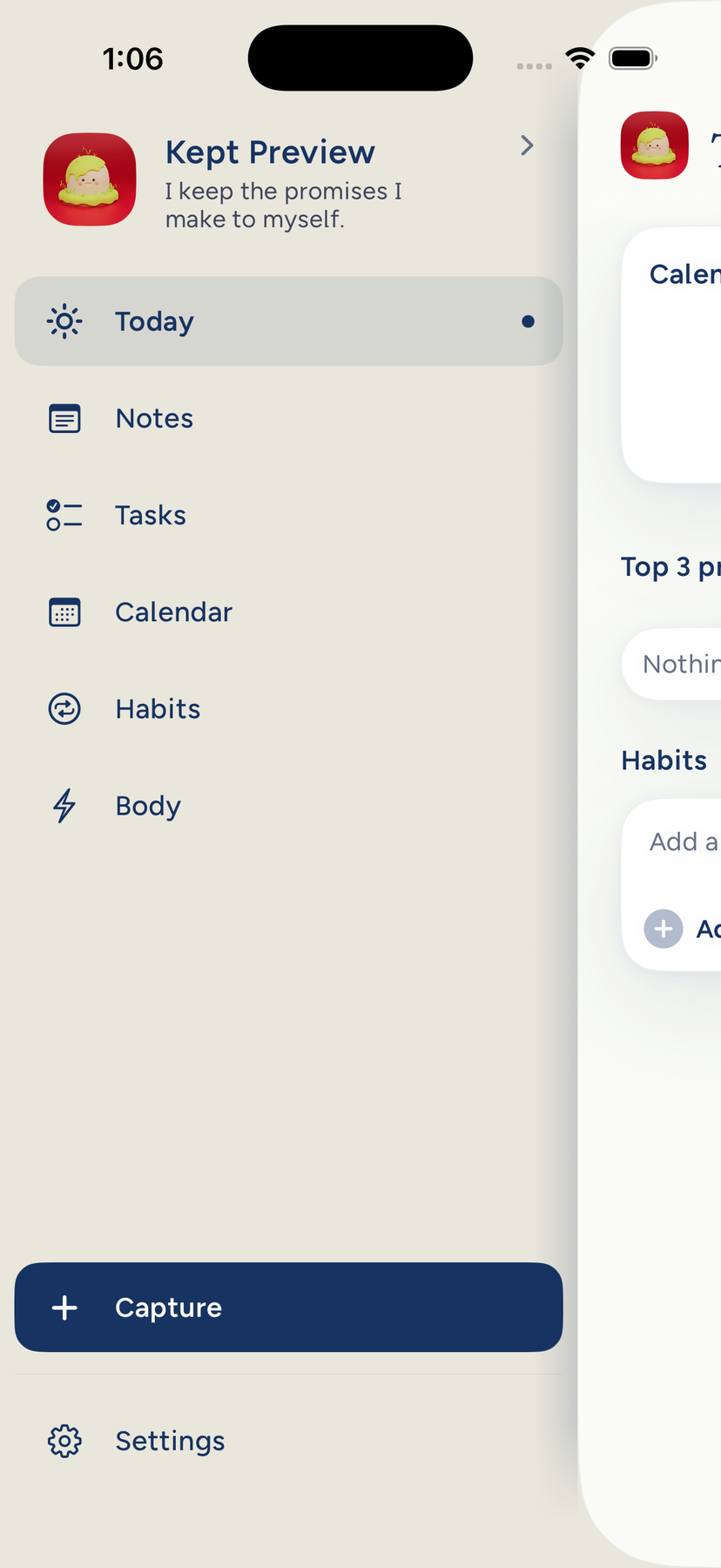
The menu lives underneath the screen you are on. Opening it slides that whole screen to the right, and the menu is waiting on a slightly darker page below. It starts out of focus and is sharp by the time its labels clear the edge; with Reduce Motion or Reduce Transparency on, it is sharp from the start. You can also drag the screen open yourself: start at the left edge, or anywhere along the top row beside your avatar and title, and it follows your finger. To go back, tap the strip of screen still showing on the right, swipe it or the menu to the left, or choose a place.
Notes is the one exception. There, the title opens the list's own picker: All notes, Daily notes, Folders, Tags, and Sort. On Notes, the avatar is the door to the menu.
The round Capture button floats at the bottom of every main screen. It never moves, so your thumb learns where it is. A pushed screen takes the whole display and the button steps aside until you come back. An open task rises as a sheet over the screen instead, and the button waits under it.
Pull down past the top of most screens, Today, Tasks, Body, even Settings, a real pull, not a bounce, to open Quick Search. A sheet is the exception: pulling down on an open task puts the task away. It greets you by the time of day and offers a few prompts. Type a few letters and Kept shows matching notes, tags, folders, today's events, habits, and what it remembers about you. Press the send arrow to hand the same words to Ask Kept. With a hardware keyboard, / opens Quick Search from anywhere. Notes and Tasks also carry a magnifying glass in the rail that filters the list you are looking at without asking Kept anything.
Kept remembers which destination you left. A warm relaunch returns you there, always at the root and never inside a pushed screen. A fresh sign-in lands on Today.
On MacMac
The sidebar on the left lists Today, Calendar, Goals, Tasks, and Notes in a fixed order, then Body once you track something or add it in Settings → Sidebar, then Pinned, then Settings. Numbers reach them too, in the order of the Go menu: ⌘1 Today, ⌘2 Calendar, ⌘3 Notes, ⌘4 Goals, ⌘5 Tasks, ⌘6 Body. ⌘, opens Settings from anywhere.
Goals is a Mac destination in its own right. On iPhone, goals live in your Profile, one tap from your name at the top of the drawer.
The command palette is the Mac's front door. Press ⌘K and start typing. It finds tasks, notes, events, and goals; jumps to any surface by name; moves your text into Capture with ⌘↩; and hands it to Ask Kept with ⌥↩. ⌘F opens the palette in search, except inside a note, where ⌘F is Find in Note and ⇧⌘F searches all notes.
Open Notes and the sidebar changes character: it becomes the Notes library, with Today, Recents when you have them, All Notes, Daily Notes, your folders, and tags. The Kept row at the top, with its back chevron, returns you to whatever you were doing. The two sidebars never show at once.
Pin the things you return to. On Mac, right-click any note, folder, tag, or task and choose Pin to Sidebar. On iPhone, choose Pin to Menu from a note, folder, or tag, and it appears under Pinned in the menu; drag to reorder, long-press to unpin. Pins belong to your account.
⌘ / opens the shortcuts sheet inside the app, and Keyboard shortcuts reproduces it here.
Optional parts
Habits and Body are optional. They join navigation when you use them, and Settings → Menu on iPhone or Settings → Sidebar on Mac adds or tucks them away; that choice belongs to your account, so your iPhone and Mac agree. Settings → Habits on Today decides whether habits appear on the Today screen. On Mac, Settings → Sidebar can also tuck the Calendar row away. See Modules and layout.
Where Settings lives
- iPhone: tap your avatar, then Settings at the bottom of the drawer.
- Mac: press ⌘,, or click the gear at the bottom of the sidebar.
Settings holds your profile, life areas, layout, appearance, notifications, calendars, the AI connection, Cloud AI permissions, and your account, plus Apple Health and Automations on iPhone and Keyboard and Meeting import on Mac. Settings, explained walks through every row.