

GuideCalendariPhone
Calendar
Day, week, and month views with your Apple and Google events beside what you plan in Kept. Pinch to zoom out, swipe to move, hold to drag.
Calendar is where your plans meet the clock. It shows events from the calendars you connect, the events you create in Kept, and, if you like, your scheduled habits, tasks, and daily notes on the same grid.
Choose a view
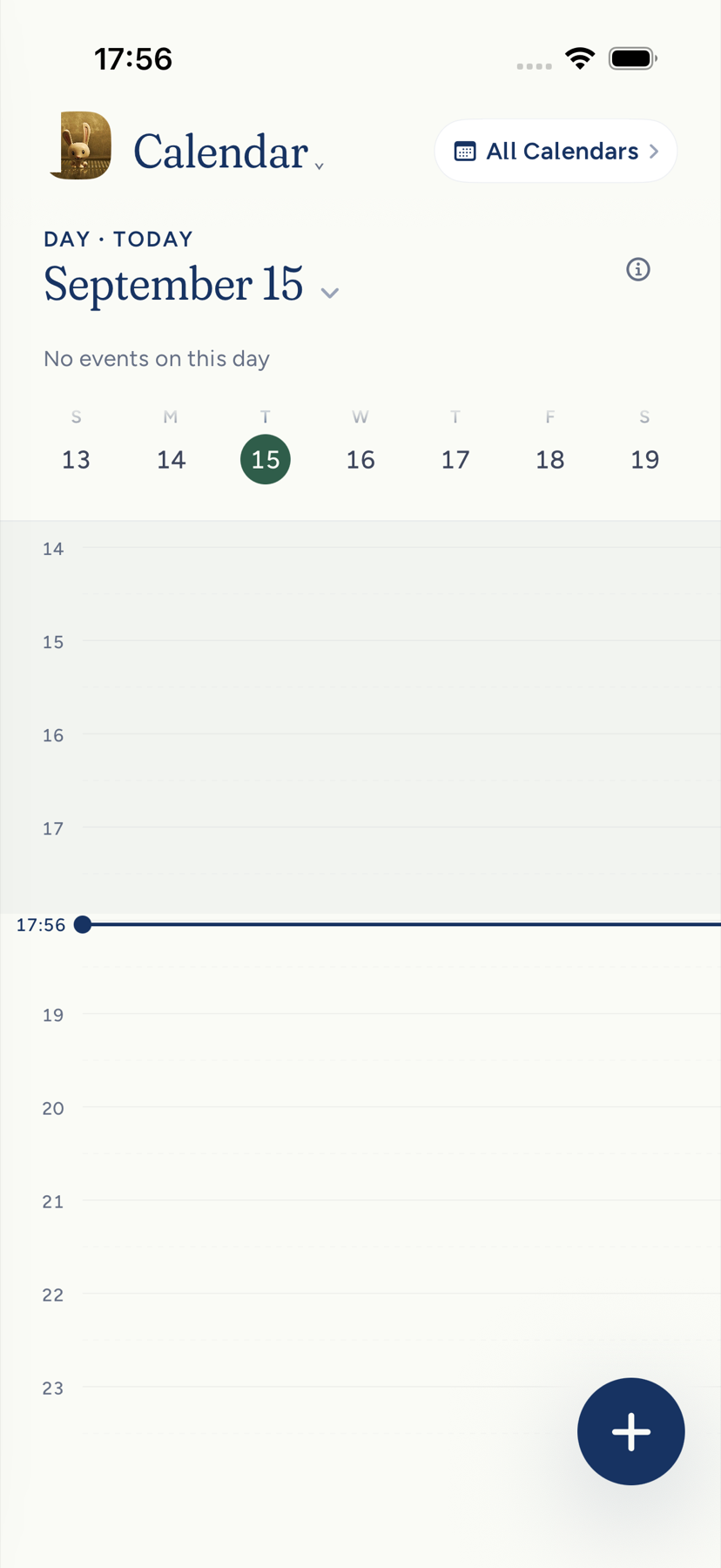
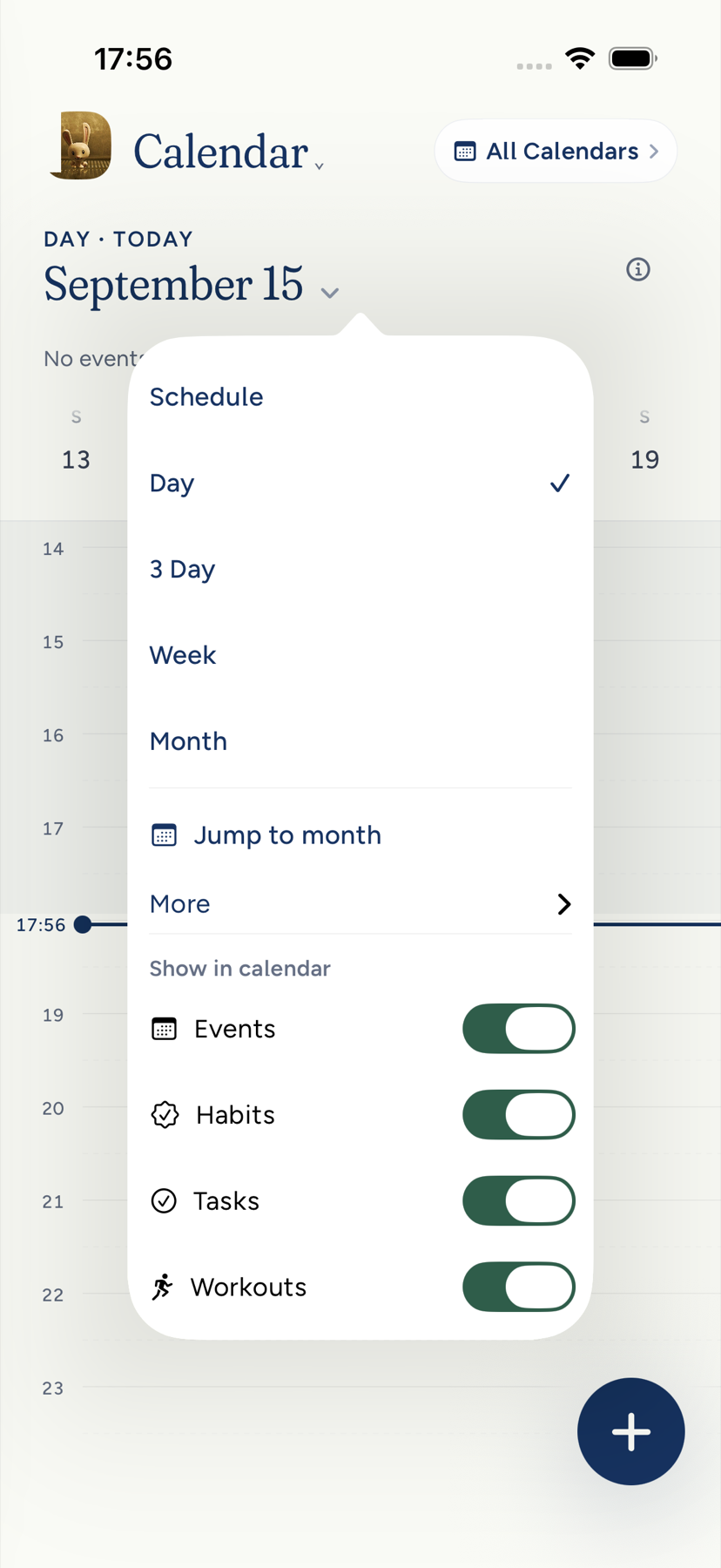
Tap the date heading to pick Schedule, Day, 3 Day, Week, or Month, with Year under More and a Jump to month shortcut. The same menu lets you show or hide Events, Habits, Tasks, Workouts, and Daily notes, for whichever of those you have turned on. All Calendars in the top corner chooses which connected calendars to include and opens calendar settings, and the information button beside it explains what the one smart calendar is doing. Turning a calendar off simply removes its events; Kept does not add a notice about it above your grid. Each account remembers its view.
Tap an empty slot in the day grid and Kept offers New at that time, a half-hour block with the title field ready. In calendar settings, Default calendar picks where new events go, Smart calendar merges duplicate copies of the same event into one richest copy (on by default), and each calendar can take a color of your choosing that syncs to your other devices and never changes the color at the source.
- Day keeps its hour grid while you tap other dates in the week strip.
- Schedule lists a week of plans as a running list.
- 3 Day and Week scroll sideways through their columns; arrows move by period.
- Month shows short titles and an overflow count. Tap a date to open its day, then Back to month.
Today brings you back from anywhere, to now as well as to the date: in 3 Day and Week it returns the grid to the current hour rather than leaving you at the hour you had scrolled to.
Move around
- Swipe a day left or right to change days. Swipe the week strip to jump weeks.
- In 3 Day, the days are one strip under your finger. Part way through a swipe you can see both periods at once with the join between them wherever you have dragged it, you can push it back the way it came without letting go, and taking hold again while it is still settling picks it up where it is. A long press, not a swipe, is what moves an event.
- Pinch to change altitude: pinching in on Month goes to Year, on Week goes to Month. Pinch out to step back down toward Day. On Day, pinching stretches or squeezes the hours; squeeze far enough and you land on Month.
- Tap an empty slot on the day grid to start a new event at that time.
- A quiet line marks the current time in today's column.
Open and edit an event
Tap an event and it grows into a detail card over a soft blur. Drag down or tap outside to put it back. A Google event's card names the account it came from in muted text under the title, so a work event and a personal one are easy to tell apart; a long address shortens in the middle rather than wrapping. A meeting with a video link shows a join button; a meeting with guests shows the roster and how each has replied. Color recolors a Google event with the same palette as your calendars.
Edit changes the title, location, date, and times. For events you were invited to, Your response offers Going, Maybe, or Decline; the reply is sent at once and, if it cannot be delivered, Kept restores the previous answer and offers Retry. Apple Calendar events can be edited in place too, and Open in Calendar hands the event to Apple's app when you prefer it there. When you delete an Apple event, Kept says whether the deletion reaches Apple Calendar or only your copy.
Inviting other people to an event is a Mac and assistant action; see Calendar on Mac.
Move things by hand
Touch and hold an event, then drag it to a new time. A quick vertical swipe still scrolls the day, and a plain tap still opens the event.
Scheduled habits work the same way. Hold a habit chip and drag it, then choose Just this day or Every day. Moving a habit never checks it in.
All-day events and dates
A date without a time is an all-day event. It sits in the band above the hour grid, one line per item, and a line reads across the whole band rather than stopping after two words. The band holds two lines. A third item, and anything after it, gathers behind +N more at the end of the second line, which lists them and opens any one of them. Capture makes them the same way: "Board offsite Friday" is all day; "Board offsite Friday 9am" has a start.
Daily notes on their dates
With the Notes layer on, a small link marks any date that already has a daily note. Tap it to keep writing, then come back. Browsing never creates a note, and empty notes stay hidden.
Widgets
The Agenda widget lists today's events and due tasks in time order; Next shows one true thing: a pinned item, the next event, the top task due today, or today's promise; Today leads with the day. A widget that says Open Kept to check wants you to open the app once so it can refresh.